How to install Vocta
There are three ways to install Vocta: from Google Play, from RuStore, or as an APK file from this website, where a new version appears earlier. It is better to download the speech model over Wi-Fi.
From Google Play
- Open the Vocta page on Google Play and tap "Install".
- Open Vocta and go through the first-run steps: languages, the microphone, the speech model, the accessibility service.
- Try it: press volume down twice, say a phrase and press volume down once more.
The blocks described below do not apply here, and updates come through Google Play.
From RuStore

- If RuStore is not on your phone yet, install it from rustore.ru.
- Open the Vocta page on RuStore, or search RuStore for "Vocta", and tap "Install".
- Open Vocta and go through the first-run steps — the same as for Google Play.
Updates come through RuStore. A new version may appear there later than on this website. If Android stops the installation or the service, lift the block as for the APK: what to do.
APK from the website
It takes about five minutes.
The menu items below are for Samsung phones (One UI). On other phones they are named similarly.
Instructions in PDF (Russian, 9 pages, 0.7 MB)
Android will stop the installation twice — this is normal. Google protects users from fake apps and blocks anything installed outside Google Play that asks for accessibility access. Vocta needs this access to insert text into fields.
- During installation: "App blocked for your device's safety" — what to do.
- When turning on the service: "Restricted setting" — what to do.
Both blocks are lifted once. The Google Play version does not have them.
-
1. Download the APK
Open this page on your phone and tap Download APK. If the browser warns that the file may be harmful, tap "Download anyway".
-
2. Allow the installation
Open the downloaded file (from the notification or from the Downloads folder). The phone will say that installing from this source is not allowed:
- Tap "Settings".
- Turn on "Allow from this source".
- Go back and tap "Install".
If the installation is blocked
A Google Play Protect window with the buttons "More details" and "Install anyway". Tap "More details" → "Install anyway". This file is not from Google Play, so Play Protect may not know it.
A window "App blocked for your device's safety" with a single "OK" button. There is no "Install anyway" button here: this is how Google blocks any app not from Google Play that asks for accessibility access. Tap "OK" and turn off the scan for the time of installation:
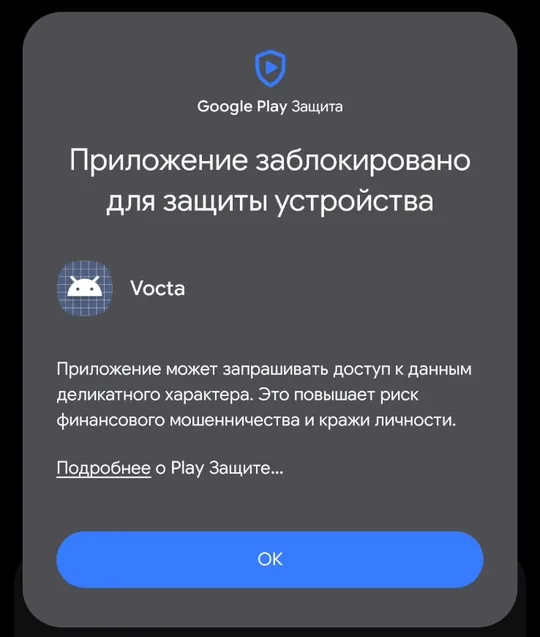
This is how the block during installation looks - Open Google Play and tap the profile icon at the top right.
- Choose "Play Protect", then the gear icon "Settings".
- Turn off "Scan apps with Play Protect" and confirm.
- Open the downloaded file again and tap "Install".
- Turn the scan back on right after the installation — the same way. Vocta stays on the phone.
If Play Protect later sends a notification about Vocta, do not delete the app: it warns about all apps not from Google Play.
If the installation does not start even with the scan off, Samsung's Auto Blocker may be on: Settings → Security and privacy → Auto Blocker → turn it off for the installation and turn it back on.
-
3. Open Vocta: languages and the microphone
The first launch walks you through five steps: languages, the microphone, the recognition model, the accessibility service and a dictation trial. The top of the screen shows which step you are on. Any step can be put off with "Later" — everything it needs is then on the main screen, under "Setup".
- Choose the app language and the dictation language, tap "Next".
- Tap "Allow the microphone" and in the Android window choose "While using the app". The "Only this time" option does not work — recording stops as soon as you leave the app.
-
4. Download the recognition model
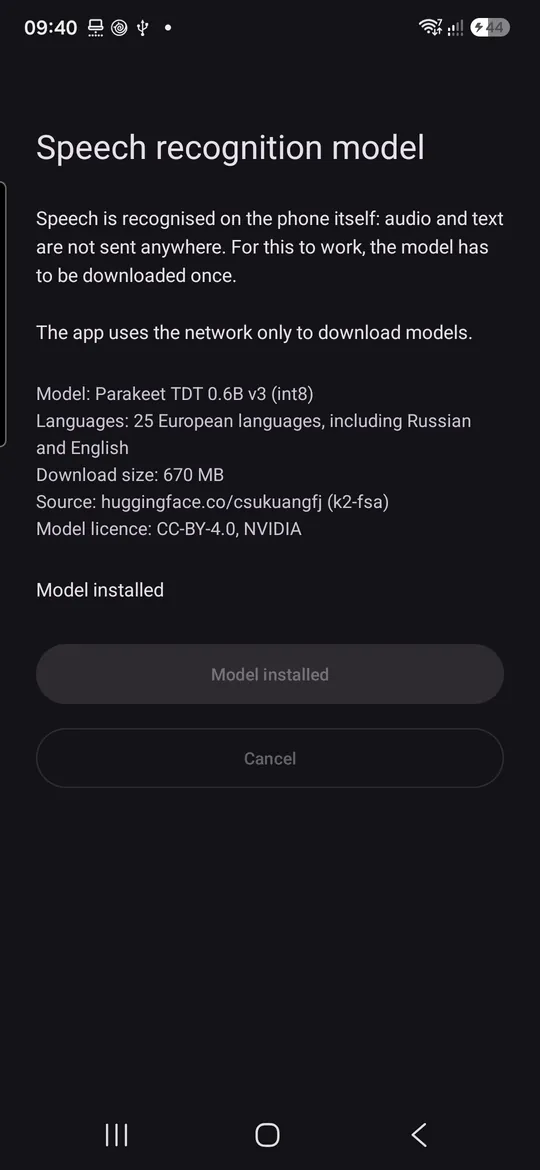
On the model step tap "Next". The file is about 670 MB — Wi-Fi is better. The download goes on while you take the other steps; if the connection drops, Vocta resumes from the same place the next time you open it. This is the only time Vocta connects to the internet.
Put it off — on the main screen tap "Speech recognition model" → "Download".
-
5. Turn on the accessibility service
Vocta inserts text into the fields of other apps through the accessibility service. This is the only way to do it without changing the keyboard.
- Read what the service sees and does not do, and tap "Agree and turn on the service".
- Tap "Open settings". In the settings choose "Installed apps" (on Samsung; on other phones, "Downloaded apps") → Vocta and turn it on.
- The phone will ask whether to give the app full control — tap "Allow". Go back — Vocta moves on to the trial by itself.
If the service does not turn on
On a phone where Vocta was installed not from Google Play, the list of services shows its name with "Restricted setting", and tapping it opens a window "Restricted setting". This is how Android protects apps installed from a file. The restriction is lifted once:
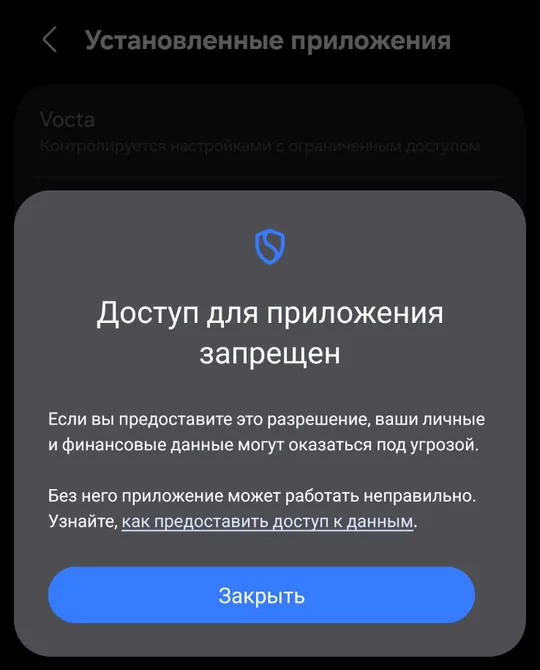
This is how the service block looks - Tap "Close". This attempt is needed: without it the menu item from step 3 does not appear.
- Open Settings → Apps → Vocta.
- Tap ⋮ at the top right → "Allow restricted settings" (on some phones, "Allow access to settings"). The phone will ask for the PIN or a fingerprint.
- Go back to Vocta and tap "Open settings" again (once the first launch is over — "Accessibility service" on the main screen), then points 2–3 of this step.
If there is no such item in the ⋮ menu — first try turning on Vocta in the list of services again, then go back to point 2.
Android Advanced Protection. Vocta cannot work with Android Advanced Protection turned on: the system switches off accessibility services other than tools for people with disabilities, and does not allow installing or updating apps from outside Google Play.
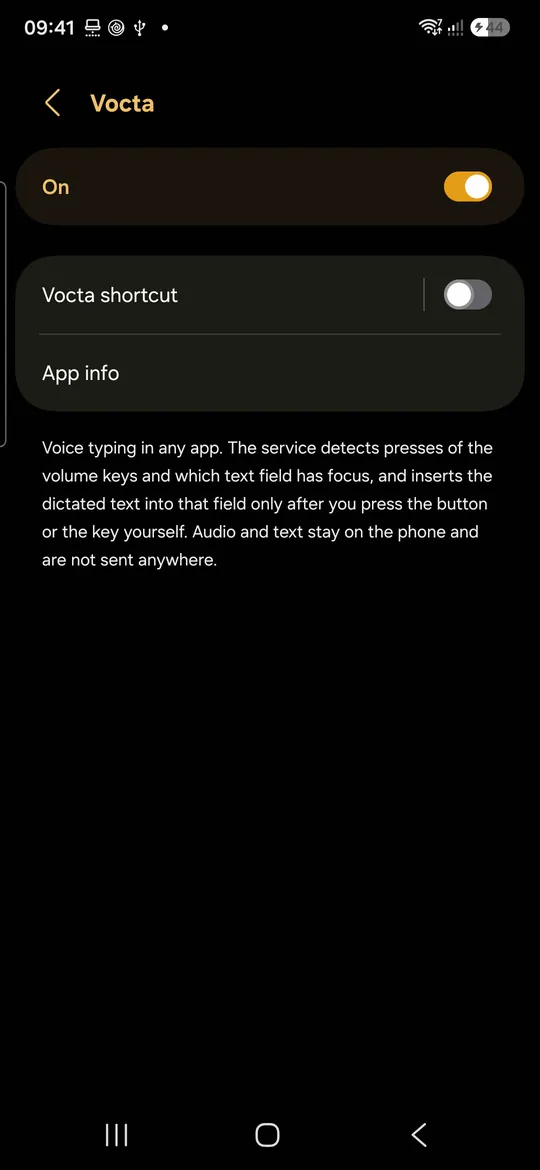
Vocta in the list of services — on -
6. Try it
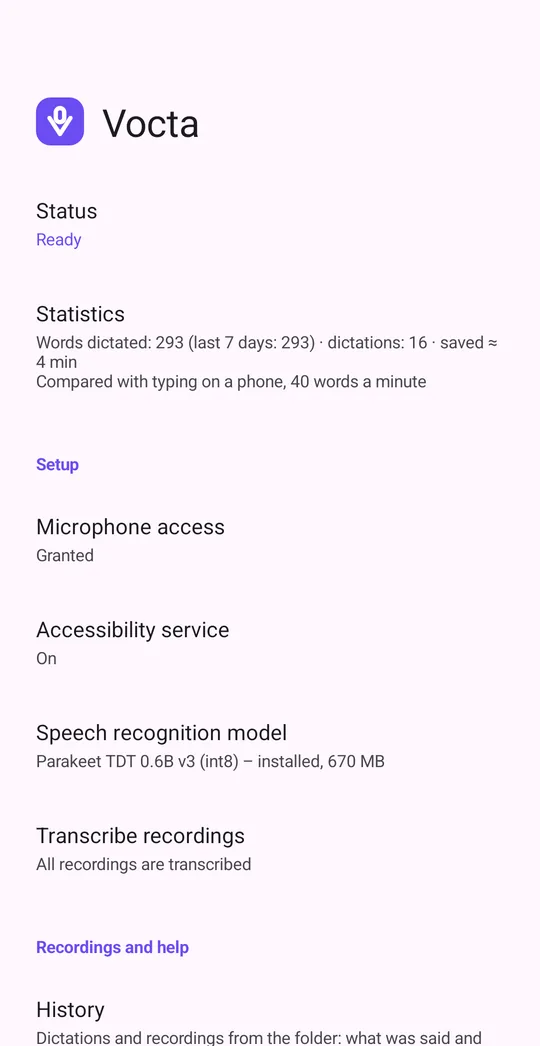
The last step is a trial. Tap the "Field to try", press the volume "down" key twice, say a phrase and press volume "down" once more. In a couple of seconds the text appears in the field. Instead of the keys you can tap the purple button next to the field.
Tap "Done" — the main screen says "Ready". It works the same in any app. More — How to use Vocta.
Moving from one to the other
Google Play, RuStore and the APK are separate sources. Updates come from where you installed Vocta: Play does not update the website version, and the website version does not install over the Play one. The only way to move, in either direction, is to uninstall:
- Save My words and replacements: Settings → Text → Word list → Export. If you need your history: History → select all → export.
- Uninstall Vocta. This removes the settings, History, your replacements and My words, and the models have to be downloaded again. Recordings and transcripts in Recordings/Vocta and Documents/Vocta stay.
- Install Vocta from the other source and bring words and replacements back with Import.
Updating
From Google Play: updates arrive by themselves.
From RuStore: updates come through RuStore.
From the website: download the new version from the home page and install it over the old one; settings, the model and recordings are kept. This version does not update itself: watch the version on the website.
Removing
Settings → Apps → Vocta → "Uninstall". The model and settings are removed with the app. Recordings and transcripts are in the shared folders (Recordings/Vocta and Documents/Vocta) and stay — delete them in "My Files" if you do not need them.